Connections
The Connections page is the central place for connecting YouTube Music Streamer to Twitch and YTMDesktop.
The Twitch connection is shown on the left. The YTMDesktop connection and its current state are shown on the right.
Twitch
A Twitch broadcaster account is required to use Twitch commands, Bits, Channel Point rewards, and other channel-related features.
You can optionally connect a second Twitch account as a dedicated bot. The bot is then used for chat messages and replies, while the broadcaster account continues to own the channel identity, rewards, and EventSub subscriptions.
Connect the broadcaster account
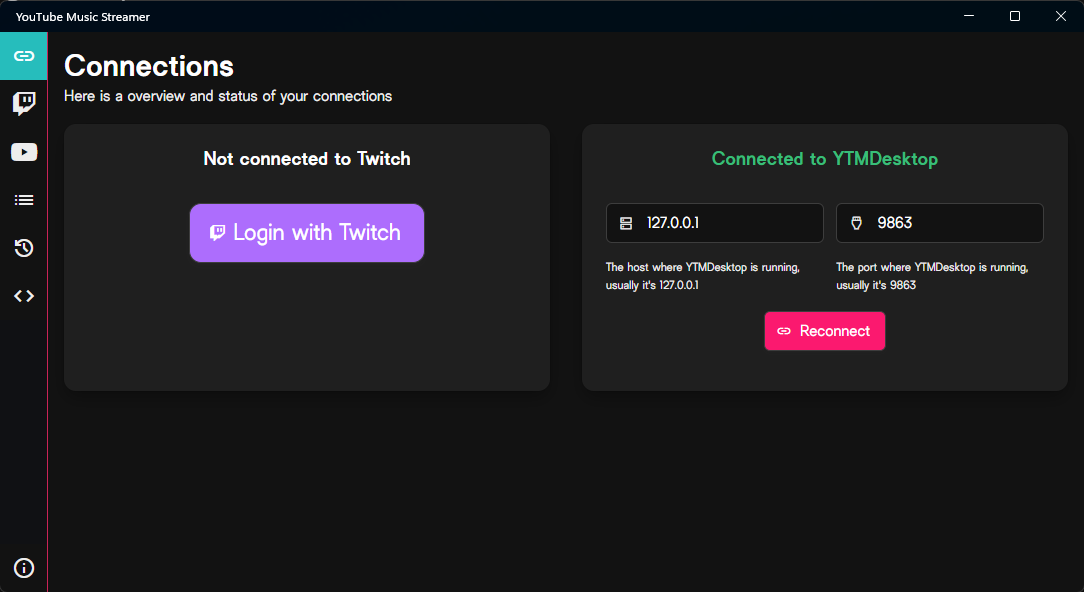
Select .
YouTube Music Streamer opens the Twitch authorization page in your default browser. Sign in with the Twitch account that owns the channel you want to use and review the requested permissions before authorizing the application.
Use the broadcaster account
The first Twitch account must be the account that owns the channel, rewards, and related Twitch resources.
You can cancel the authentication process from the application while it is waiting for the browser authorization.
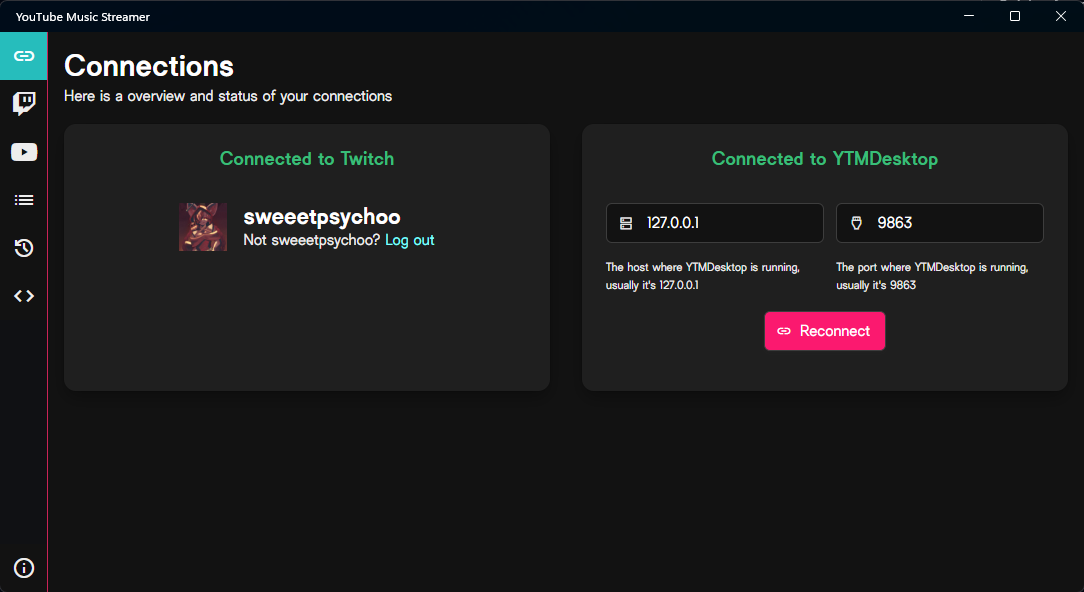
After connecting, the Broadcaster section displays the account currently responsible for:
- the channel identity;
- Channel Point rewards and redemptions;
- EventSub subscriptions;
- other privileged Twitch operations.
Select Log out to disconnect the broadcaster account or connect a different one.
Connect a bot account
Connecting a separate bot account is optional.
When no bot is connected, chat messages and command replies are sent through the broadcaster account. Select to authenticate another Twitch account for chat.
Make sure the browser is signed into the account that should act as the bot before authorizing it.
Once connected, the bot account is used for chat-facing messages and replies. You can disconnect or replace it without changing the broadcaster account.
The Effective chat identity shown at the bottom tells you which account is currently used to send chat messages.
Tip
A separate bot account keeps automated replies visually separate from messages sent by your broadcaster account. It is not required for the application to work.
YTMDesktop
YouTube Music Streamer connects to the Companion Server provided by YTMDesktop.
The default connection values are:
- Host:
127.0.0.1 - Port:
9863
These defaults are correct when both applications run on the same computer and the YTMDesktop Companion Server uses its standard port.
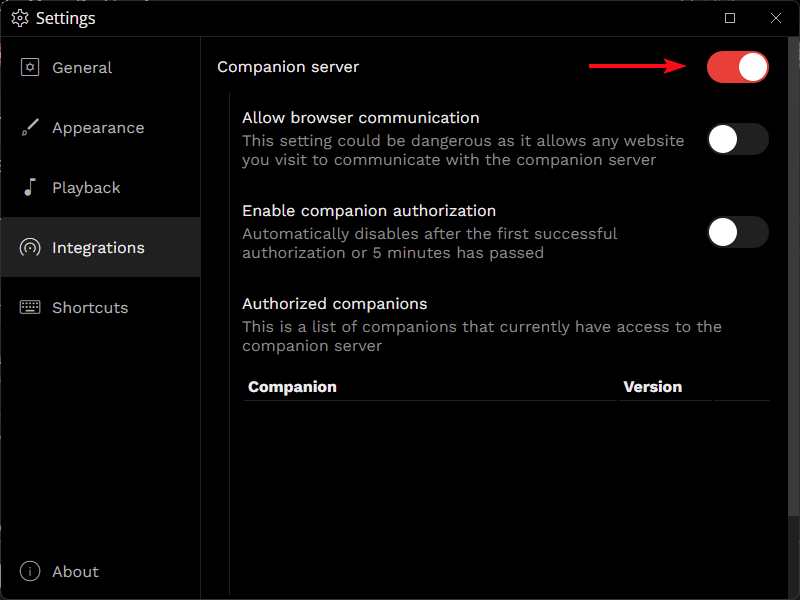
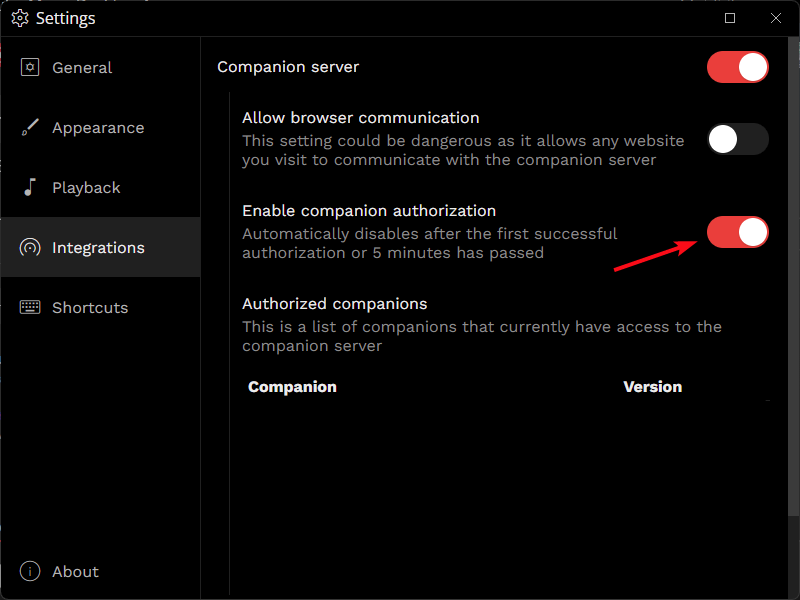
Enable the Companion Server
- Open YTMDesktop.
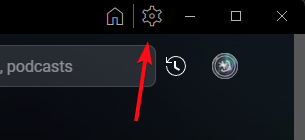
- Open its settings.
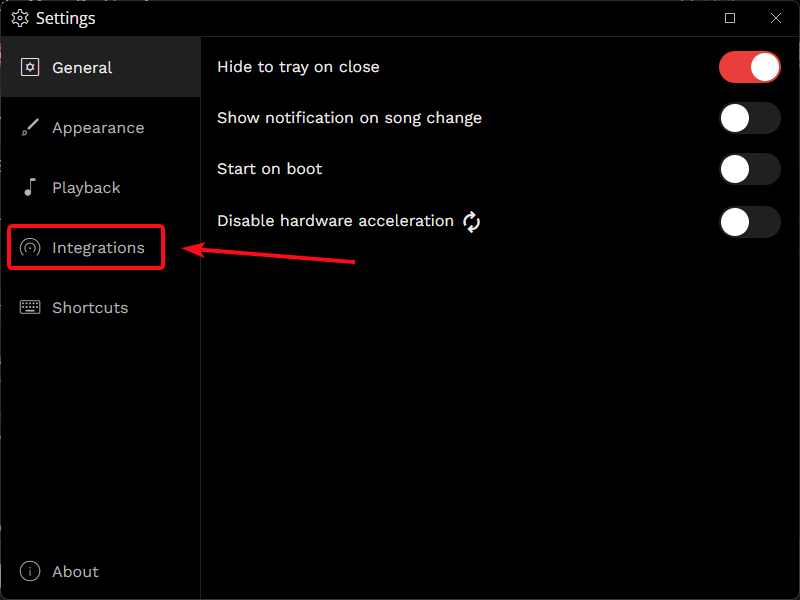
- Select Integrations.
- Enable the Companion Server.
- Enable Companion authorization.
Show the YTMDesktop setup
Connect YouTube Music Streamer
- Enter the Companion Server host and port.
- Select Connect.
- If authorization is required, YouTube Music Streamer displays an authorization code.
- YTMDesktop opens an authorization request containing its own code.
- Verify that both codes match.
- Approve the connection in YTMDesktop.
After approval, YouTube Music Streamer appears in the Authorized companions list in YTMDesktop.
Use Reconnect to re-establish the connection after changing the endpoint or when the live connection has been interrupted.
YTMDesktop status indicators
The page displays three separate states:
| Status | Meaning |
|---|---|
| Endpoint | Whether the configured host and port point to a reachable and compatible YTMDesktop Companion Server. |
| Authorization | Whether YouTube Music Streamer is authorized to use that Companion Server. |
| Live Connection | Whether the active real-time connection to YTMDesktop is currently established. |
A fully working local connection normally displays:
- Valid companion
- Authorized
- Connected
These states are independent. For example, the endpoint can be valid while authorization is still required, or the application can remain authorized while the live connection is temporarily disconnected.
Troubleshooting
If Twitch authentication opens the wrong account, sign out of that account on the Twitch authorization page and sign in with the correct one.
If YTMDesktop cannot be reached:
- verify that YTMDesktop is running;
- verify that the Companion Server is enabled;
- check the configured host and port;
- confirm that no firewall is blocking the connection;
- select Reconnect.
The status indicators help identify whether the problem is the endpoint, authorization, or the live connection.