Queue
The Queue page contains songs requested by viewers through the configured Twitch request command.
It has two tabs inside the application:
- Global controls whether queued songs are played automatically.
- Queue displays the current requests and provides controls for reordering or removing them.
The sections below follow the same structure while remaining available in the page table of contents.
Queue settings
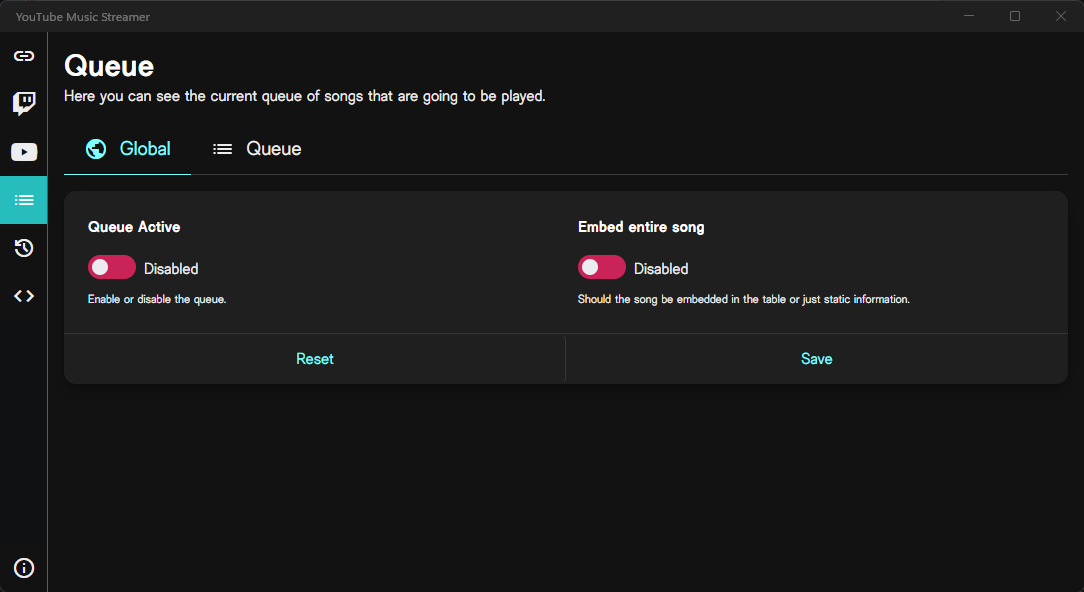
Queue Active
Queue Active controls whether YouTube Music Streamer automatically plays songs from the request queue.
When enabled:
- the first queued song is selected when the current track finishes;
- the queue continues in its configured order;
- the
nextcommand uses the first queued request before falling back to YTMDesktop's normal next-track action.
When disabled:
- viewers can still submit valid song requests;
- new requests continue to accumulate in the queue;
- YouTube Music Streamer does not automatically advance through them.
Note
Disabling the queue does not delete existing requests. They remain available until you enable the queue again, remove them manually, or clear the queue.
Privacy-friendly previews
Queue entries use static preview cards containing the thumbnail, title, and channel information.
YouTube players are not embedded directly into the queue page.
Selecting a song preview opens the corresponding YouTube video in your browser.
Saving and resetting
Select Save after changing Queue Active.
Select Reset to restore the most recently saved value.
Managing the queue
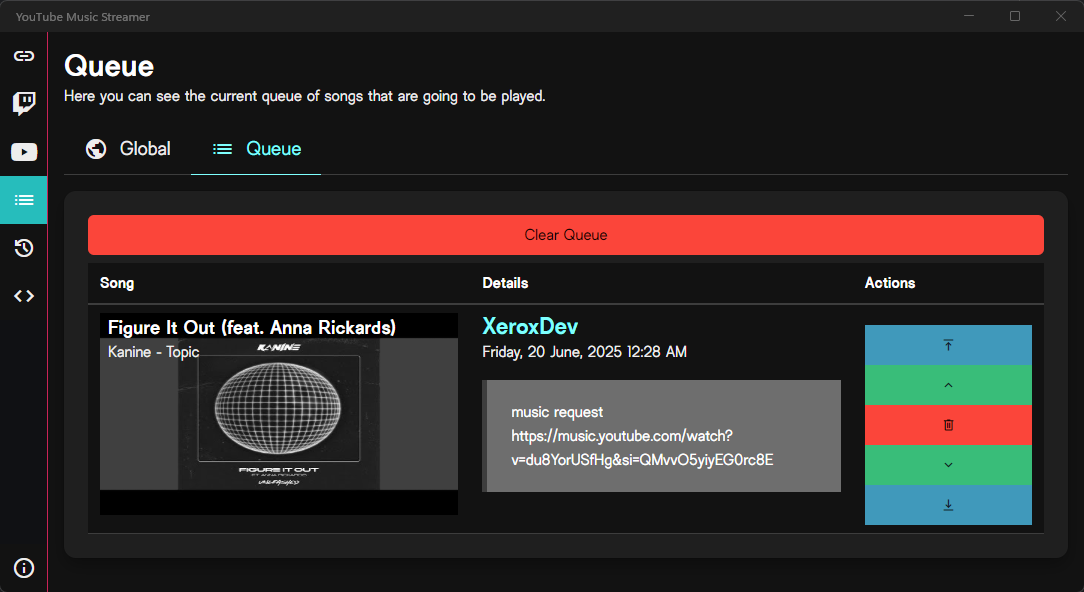
The Queue tab displays all pending viewer requests in their current playback order.
The first entry is the next requested song to be played when automatic queue playback is active.
Song information
The Song column displays the available metadata for the request, including:
- thumbnail;
- song or video title;
- channel or artist name.
Select the thumbnail to open the video on YouTube.
If metadata could not be resolved, the page displays No information available instead.
Request details
The Details column shows information about the request itself:
- the Twitch user who submitted it;
- the date and time it was requested;
- the message or input supplied with the request.
The requester's name links to their Twitch profile.
When no message was included, the entry displays No message.
Reordering entries
The action buttons let you change the position of individual requests.
| Action | Icon | Behaviour |
|---|---|---|
| Move to top | Moves the song directly to the first position. | |
| Move up | Moves the song one position earlier. | |
| Delete | Removes the song from the queue. | |
| Move down | Moves the song one position later. | |
| Move to bottom | Moves the song directly to the final position. |
Reordering takes effect immediately.
Removing an entry
Select the delete button beside a request to remove only that entry.
Removing a request does not start or skip any track currently playing in YTMDesktop.
Clearing the queue
Select Clear Queue to remove every pending request.
The button is only displayed while the queue contains at least one entry.
Warning
Clearing the queue removes all pending requests, not only the currently visible or next entry.
Empty queue
When no requests are waiting, the page displays No items in the queue.
Automatic playback behaviour
When Queue Active is enabled and the current song approaches its end, YouTube Music Streamer asks YTMDesktop to start the first queued request.
The entry is removed only after YTMDesktop confirms that the requested song has actually started.
This prevents requests from disappearing when a track switch is delayed or fails.
If the switch cannot be confirmed, the request remains in the queue so it can be retried or handled manually.
Adding songs to the queue
Songs are normally added through the Twitch request command rather than directly from the Queue page.
The request must:
- contain a valid YouTube or YouTube Music video URL;
- resolve to accessible video information;
- not match an entry in the blacklist.
Command availability, access restrictions, cooldowns, Bits requirements, and Channel Point reward triggers are configured on the Twitch page.