Twitch
The Twitch Settings page controls how YouTube Music Streamer interacts with Twitch chat, commands, Bits, and Channel Point rewards.
The page contains two tabs:
- Global contains settings shared by all Twitch commands.
- Command contains the individual configuration for each available command.
Your Twitch accounts are connected and managed from the Connections page.
Global settings
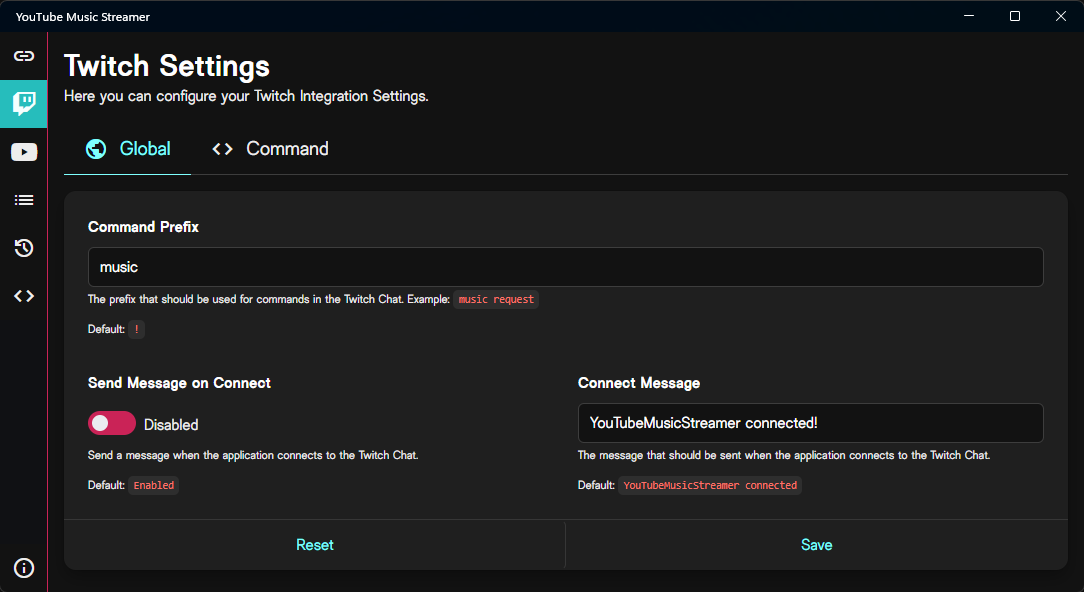
The Global tab contains settings that apply to the entire Twitch integration.
Command Prefix
The command prefix is the text viewers must enter before a command trigger.
For example, with the prefix ! and the trigger list, the complete chat command is:
The prefix can also contain multiple characters or words.
For example, the prefix music and the trigger list produce:
The preview below the setting shows how commands will appear with the configured prefix.
Send Message on Connect
When enabled, YouTube Music Streamer sends a message to Twitch chat after establishing the chat connection.
This can be used to let viewers or moderators know that the integration is available.
Connect Message
The connect message is the text sent when Send Message on Connect is enabled.
The message is sent using the currently effective chat identity:
- the dedicated bot account, when one is connected;
- otherwise, the broadcaster account.
Command settings
Open the Command tab to configure individual Twitch commands.
Each command appears in its own collapsible section. Select a command to expand its settings.
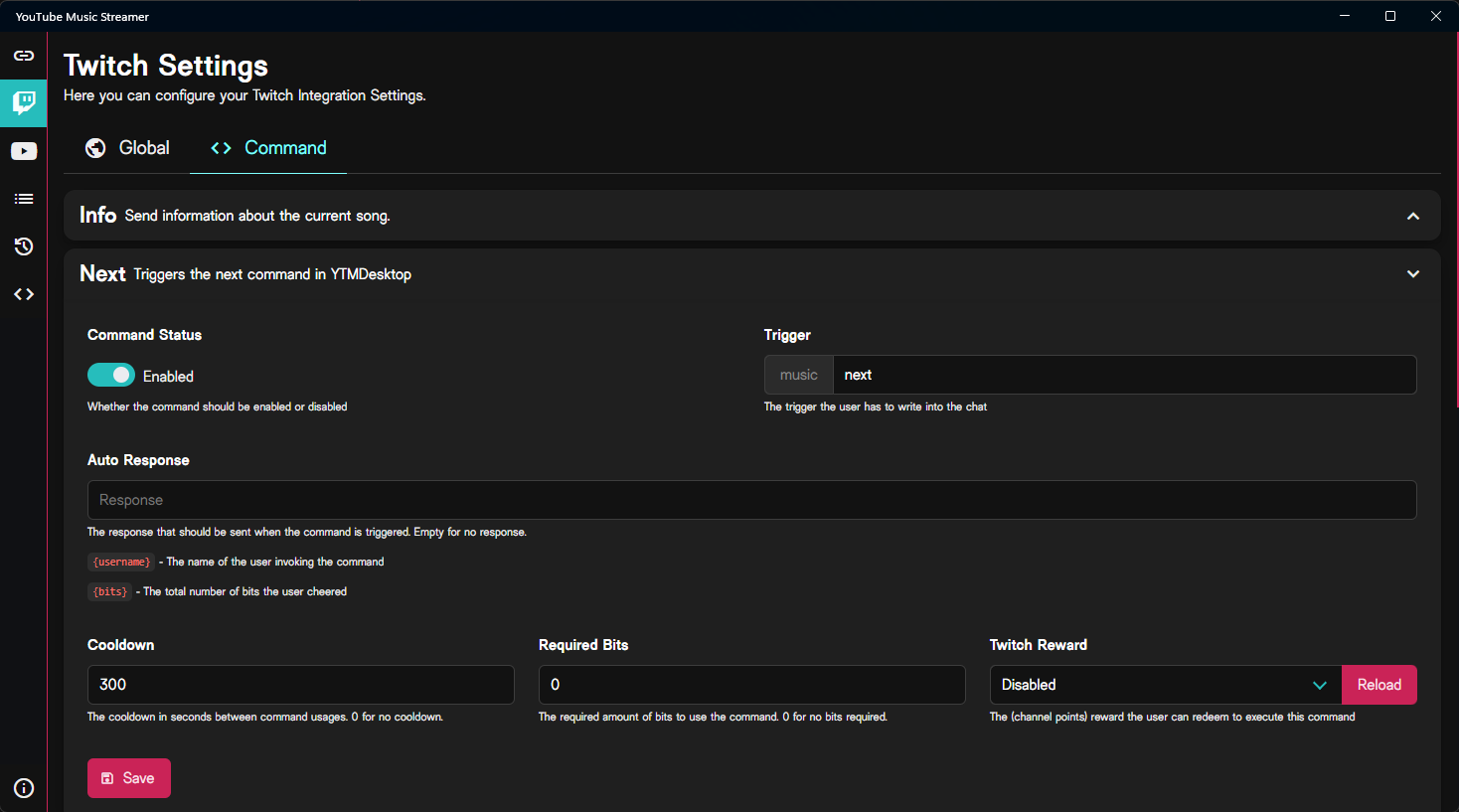
After changing a command, select Save at the bottom of its section.
Trigger configuration
A command can be activated through chat, Bits, Channel Points, or a combination of those methods.
Chat Mode
Chat Mode controls whether the command can be triggered through Twitch chat.
Available modes are:
| Mode | Behaviour |
|---|---|
| Disabled | The command cannot be triggered through chat. |
| Chat | The command can be triggered through a normal chat message. |
| Bits Only | The command must be triggered through a cheer containing the required number of Bits. |
Chat Mode and Reward Trigger are configured independently.
For example, a command can remain available through chat while also being connected to a Channel Point reward.
Reward Trigger
Reward Trigger controls whether the command can be activated through a Twitch Channel Point reward.
Available modes are:
| Mode | Behaviour |
|---|---|
| Disabled | The command is not connected to a Channel Point reward. |
| Existing Reward | The command is connected to a reward that already exists on Twitch. |
| App-managed Reward | YouTube Music Streamer creates and manages the reward on Twitch. |
The differences between existing and app-managed rewards are explained in the Channel Point rewards section.
Trigger
The trigger is the command-specific text entered after the global command prefix.
For example:
- Command Prefix:
! - Trigger:
list
The complete command becomes:
The prefix is displayed next to the trigger field so you can see the complete invocation shape while editing.
Responses and placeholders
Auto Response
The Auto Response is sent after the command is triggered.
Leave the field empty if the command should not send an automatic reply.
Some commands provide placeholders that are replaced when the response is generated. The placeholders available for the selected command are listed below the response field.
Examples include:
| Placeholder | Meaning |
|---|---|
{username} | The Twitch user who triggered the command. |
{bits} | The number of Bits included with the command. |
{commands} | The enabled commands and their configured invocation shapes. |
The exact placeholders depend on the selected command.
Access Denied Response
The Access Denied Response is shown when someone tries to use a command without the required Twitch role.
Leave this field empty to use the default access-denied message.
Access, cooldowns, and Bits
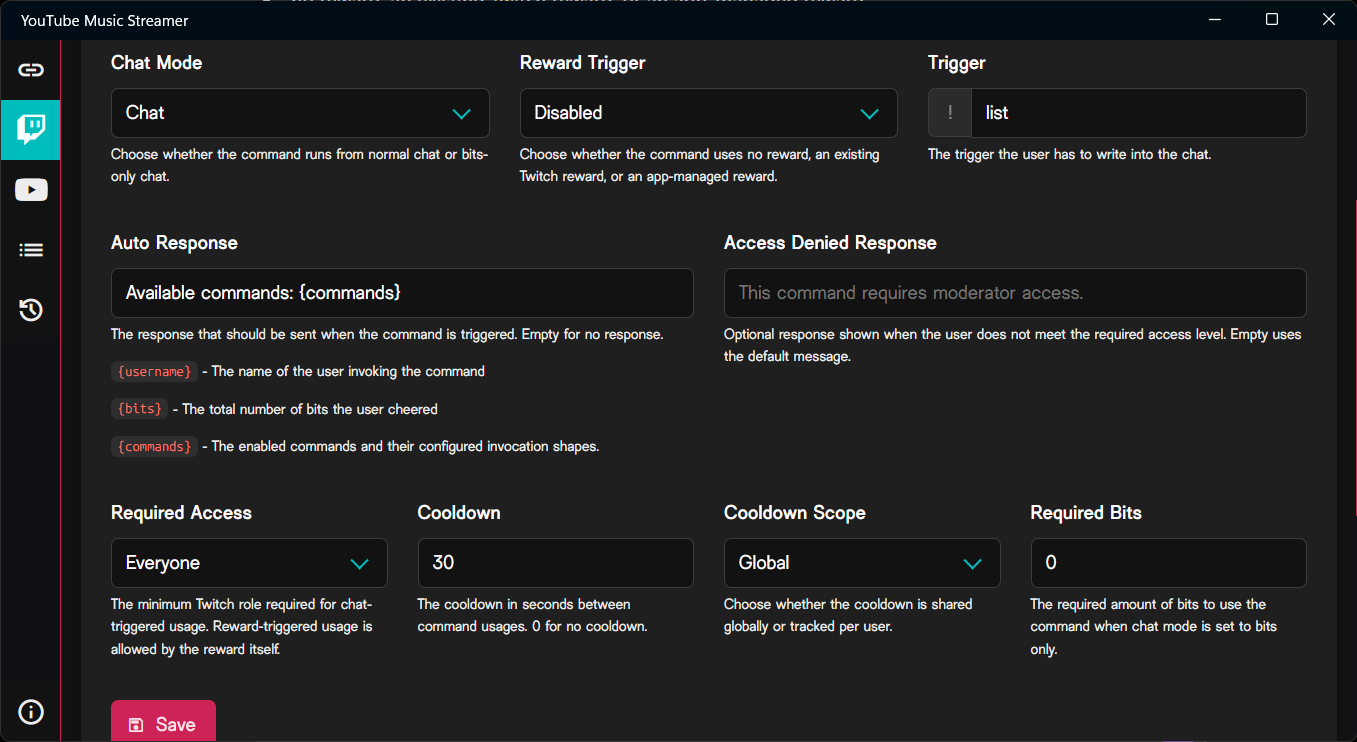
Required Access
Required Access defines the minimum Twitch role required to trigger the command through chat.
Available levels are:
- Everyone
- Subscriber
- VIP
- Moderator
- Broadcaster
This restriction applies to chat-triggered use.
Reward-triggered use is authorized by the reward redemption itself and is therefore not blocked by the chat access level.
Cooldown
The cooldown is the number of seconds that must pass before the command can be used again.
Set it to 0 to disable the cooldown.
Cooldown Scope
Cooldown Scope controls how the cooldown is tracked.
| Scope | Behaviour |
|---|---|
| Global | Every viewer shares one cooldown. |
| Per User | Each viewer has an independent cooldown. |
A global cooldown is useful for commands that should not run frequently, regardless of who triggers them.
A per-user cooldown prevents one viewer from repeatedly using a command without blocking everyone else.
Required Bits
Required Bits is used when Chat Mode is set to Bits Only.
It defines the minimum number of Bits that must be included in the cheer for the command to run.
When Chat Mode is not set to Bits Only, this setting does not affect normal chat usage.
Channel Point rewards
A command can be connected either to an existing Twitch reward or to a reward managed by YouTube Music Streamer.
Existing Reward
Use Existing Reward when the reward was created manually through Twitch.
After selecting this mode, choose the reward that should trigger the command.
Existing rewards provide a simple connection between a redemption and a command, but YouTube Music Streamer does not own their full lifecycle.
This means existing rewards do not support the same automatic fulfilment and refund behaviour as app-managed rewards.
Commands requiring input
Commands such as song requests require text input from the viewer.
The selected Twitch reward must also require user input. Otherwise, Twitch cannot provide the value needed by the command.
App-managed Reward
Use App-managed Reward when YouTube Music Streamer should create and manage the reward on Twitch.
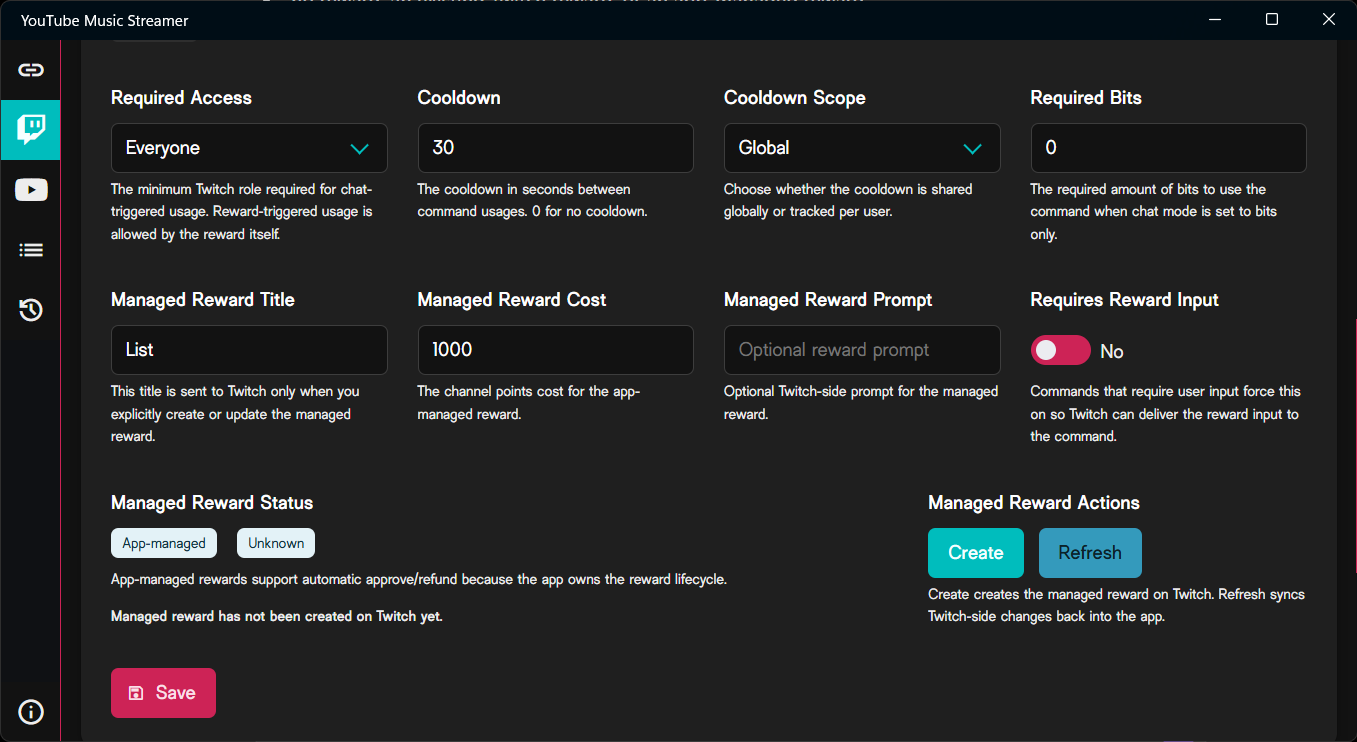
App-managed rewards provide additional configuration and lifecycle management.
Managed Reward Title
The title displayed for the reward on Twitch.
Changing this field only updates the local draft until you explicitly create or update the reward on Twitch.
Managed Reward Cost
The number of Channel Points required to redeem the reward.
The cost must be greater than 0.
Managed Reward Prompt
An optional prompt displayed by Twitch when the viewer opens the reward.
Use it to explain what the viewer should enter or what the reward does.
Requires Reward Input
Enable this when viewers must enter text while redeeming the reward.
Commands that inherently require input automatically force this option on.
For example, a song request reward must collect the requested URL or search value from the viewer.
Managed Reward Status
The status area displays information about the app-managed reward and its compatibility with the selected command.
Possible situations include:
- the reward has not been created yet;
- the reward exists and is compatible;
- the reward was removed from Twitch;
- the reward exists but no longer matches the command requirements;
- the application needs to recreate or update the reward.
The displayed message explains the current state and the action required.
Managed Reward Actions
The available actions depend on the current reward state.
Create
Creates the reward on Twitch using the current title, cost, prompt, and input settings.
Update
Pushes the current local reward configuration to Twitch.
Recreate
Creates the reward again when the previously linked reward no longer exists.
Fix on Twitch
Updates an incompatible reward so that it matches the requirements of the command.
Refresh
Reads the current reward configuration from Twitch and synchronizes Twitch-side changes back into the application.
Save and Twitch actions are separate
Save stores the command configuration inside YouTube Music Streamer.
It does not automatically create or update the actual reward on Twitch.
Use Create, Update, Recreate, or Fix on Twitch when you want to change the Twitch reward itself.
Automatic fulfilment and refunds
App-managed rewards support automatic redemption moderation because YouTube Music Streamer owns the reward lifecycle.
When the command completes successfully, the redemption can be marked as fulfilled automatically.
When the command fails, the redemption can be cancelled and the viewer's Channel Points can be refunded automatically.
Examples of failures that may result in a refund include:
- invalid command input;
- an unsupported or malformed request;
- a blocked song;
- a request that cannot be added or processed;
- another command-specific validation failure.
This reduces the need for streamers and moderators to manually review every reward redemption.
Existing rewards do not provide this full automatic approval and refund flow.
Common configurations
Normal chat command
Use this configuration when viewers should trigger the command through normal chat:
- Chat Mode:
Chat - Reward Trigger:
Disabled
Example:
Bits-only command
Use this configuration when the command should require Bits:
- Chat Mode:
Bits Only - Required Bits: the desired minimum
- Reward Trigger:
Disabledor another desired reward mode
Chat and reward command
Use this configuration when the same command should be available through chat and Channel Points:
- Chat Mode:
Chat - Reward Trigger:
Existing RewardorApp-managed Reward
The viewer can then use either configured trigger method.
Reward-only command
Use this configuration when the command should only be available through Channel Points:
- Chat Mode:
Disabled - Reward Trigger:
Existing RewardorApp-managed Reward
Moderator-only chat command
Use this configuration when only moderators and the broadcaster should invoke the command through chat:
- Chat Mode:
Chat - Required Access:
Moderator - optionally configure an Access Denied Response
Per-user cooldown
Use this configuration when each viewer should have their own cooldown:
- configure the desired Cooldown
- set Cooldown Scope to
Per User
Available commands
The Command tab lists all commands available in the installed application version.
Commands may include actions such as:
- displaying information about the current song;
- listing enabled commands;
- skipping to the next or previous track;
- changing the volume;
- requesting songs;
- immediately starting a requested song.
Each command includes a short description in its collapsible header.
The application interface is the source of truth for the commands and placeholders available in the currently installed version.