YTMDesktop
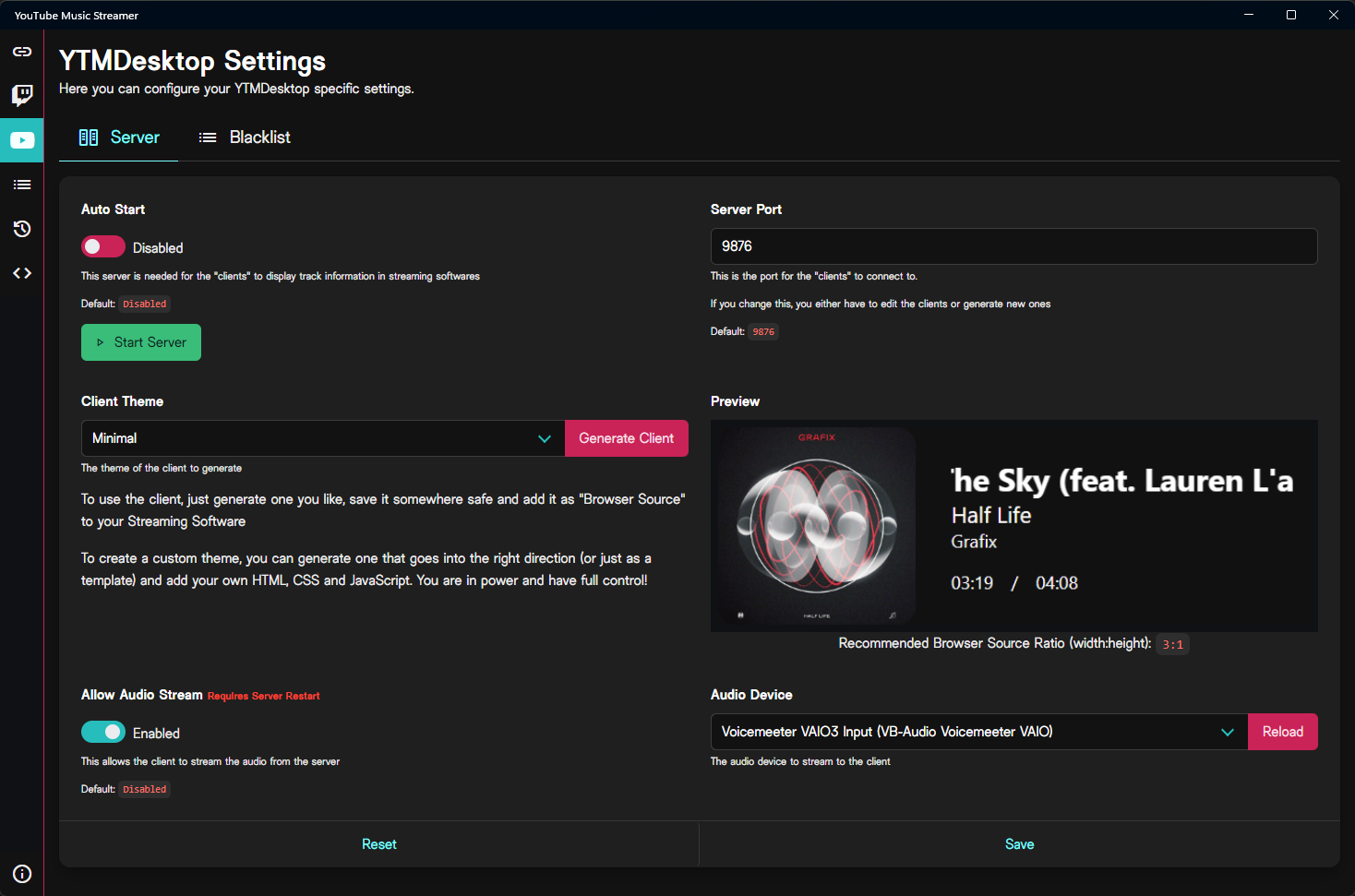
The YTMDesktop Settings page controls the widget server, generated browser-source clients, optional audio capture, and the song-request blacklist.
The page contains two tabs inside the application:
- Server configures widgets, clients, and audio capture.
- Blacklist controls which songs viewers cannot request.
The connection between YouTube Music Streamer and YTMDesktop itself is configured on the Connections page.
Widget server
The widget server provides track information to generated clients and custom browser-source widgets.
It supplies information such as:
- song title;
- artist;
- album artwork;
- playback position;
- track duration;
- playback state;
- optional audio data.
Widget Server status
The Widget Server status shows the current runtime state of the server.
Possible states include:
| Status | Meaning |
|---|---|
| Stopped | The widget server is not running. |
| Starting | The server is currently starting. |
| Running | Clients can connect and receive live data. |
| Degraded | The server is running, but some live data is unavailable. |
| Error | The server could not start or encountered a runtime error. |
A degraded state can occur when the widget server remains active while the live YTMDesktop connection is unavailable.
This allows connected widgets to remain reachable instead of disappearing completely, although current track information may be incomplete until the connection recovers.
Starting and stopping the server
Use Start Server to start the widget server manually.
While the server is running, the button changes to Stop Server.
Manual control is independent of Auto Start. You can therefore run the server for the current session without enabling automatic startup.
Auto Start
When enabled, the widget server starts automatically with YouTube Music Streamer.
When disabled, start it manually whenever you need browser-source clients.
The default value is Disabled.
Server Port
The server port determines where generated clients connect to the widget server.
The default port is:
The port must be between 1 and 65535 and must not already be occupied by another application.
Changing the port
Generated clients contain the configured server address.
After changing the port, either update existing custom clients manually or generate new clients using the new configuration.
Widget clients
Widget clients are HTML files that display the currently playing track in streaming software such as OBS Studio.
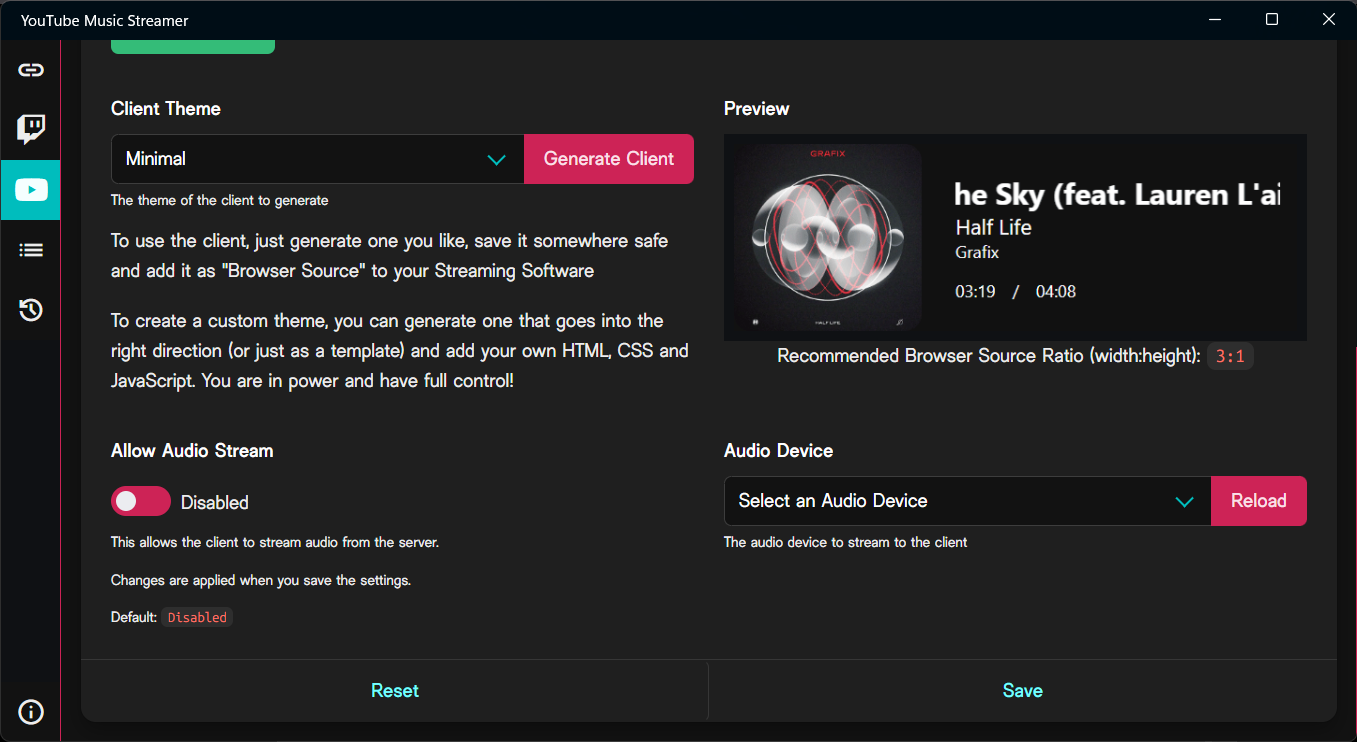
Client Theme
Select the client design you want to generate.
The available first-party themes are shown in the dropdown. Selecting a theme also changes the preview displayed on the right.
Generate Client
Select Generate Client to export the chosen widget as an HTML file.
Save the generated file somewhere permanent, then add it to your streaming software as a local browser source.
For example, in OBS Studio:
- Add a new Browser source.
- Enable Local file.
- Select the generated HTML file.
- Configure the width and height using the recommended ratio shown in the application.
Note
The widget server must be running while the browser source is in use.
Preview and browser-source ratio
The preview shows the selected client with example track information.
Below it, YouTube Music Streamer displays the recommended browser-source aspect ratio in width:height format.
For example:
Possible resolutions using that ratio include:
You may use another size, but preserving the recommended ratio usually produces the intended layout.
Available clients
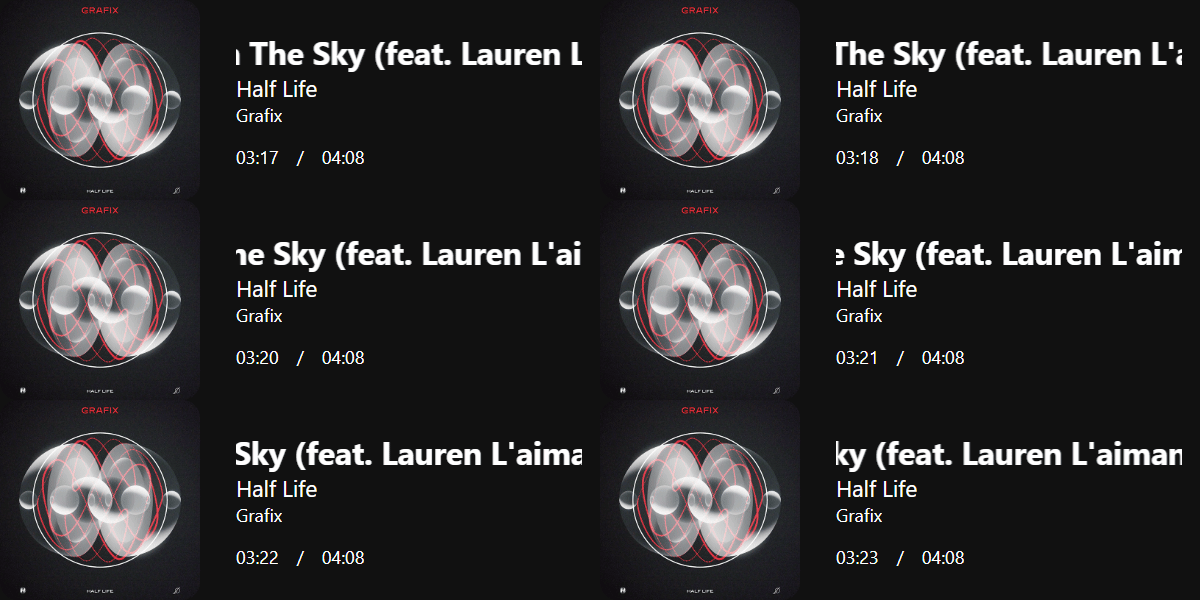
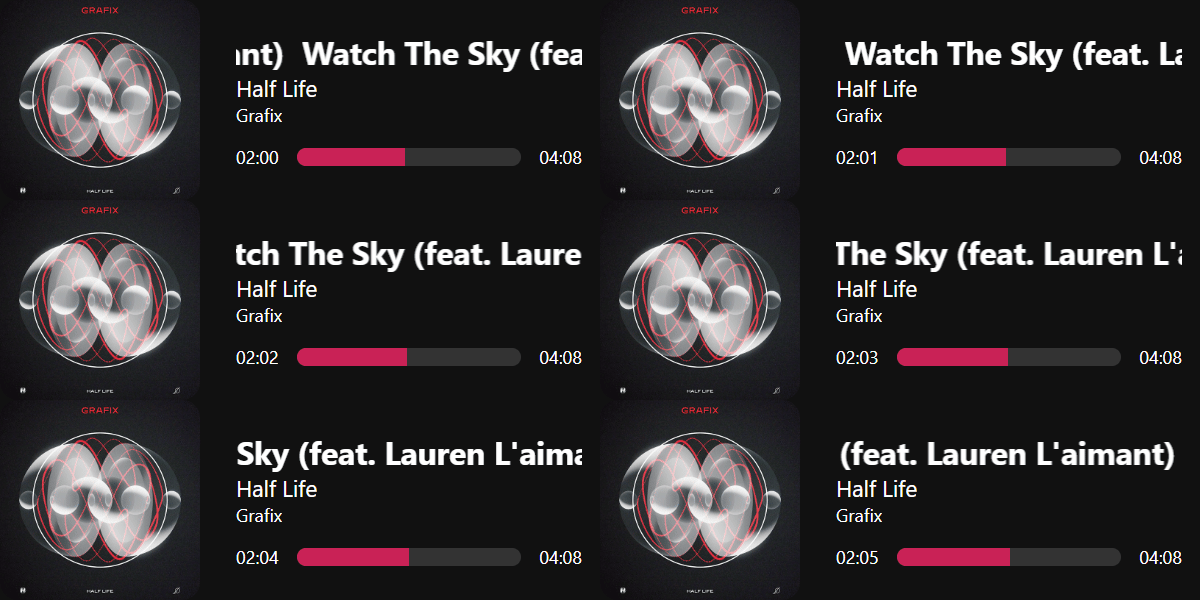
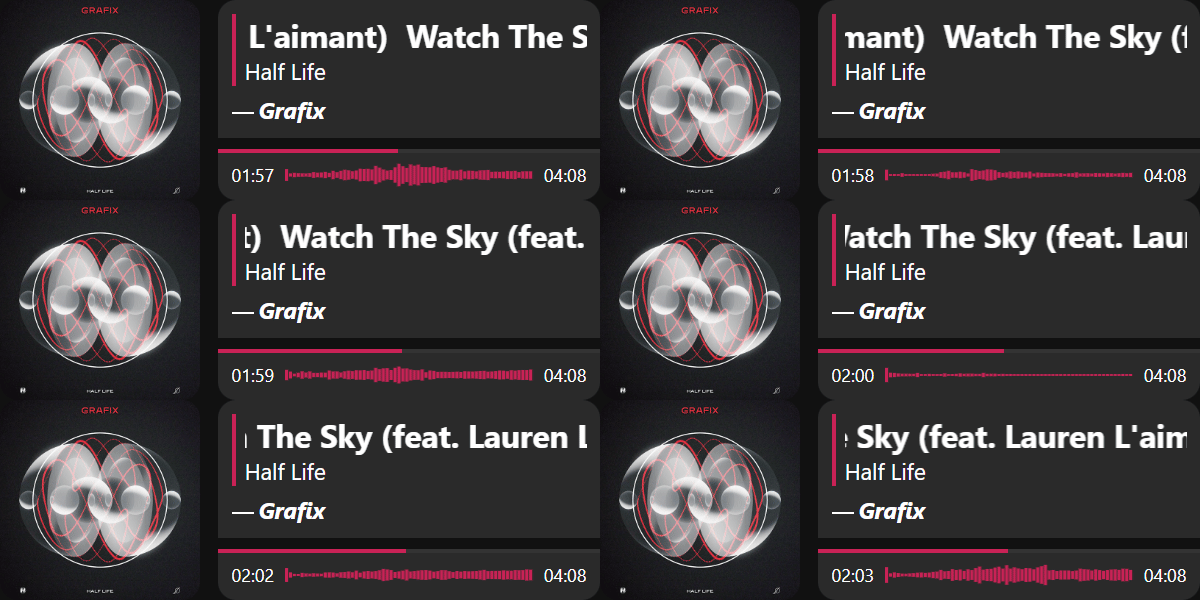
Generated clients can also be used as templates for your own HTML, CSS, and JavaScript.
To learn more, see Creating Custom Themes and Clients. (1)
1. All first-party clients and widgets, including the dev-widget and clients exported through the app's Generate Client feature, are part of the project's AGPL-3.0 codebase.
- You may download, use, and modify these clients privately under the terms of the AGPL-3.0.
- If you redistribute a client or a modified version, you must comply with the AGPL-3.0 requirements, including providing the corresponding source under the same license.
- If you operate a modified version in a way that allows users to interact with it remotely over a network, the AGPL-3.0 may also require you to offer those users its corresponding source.

Conversely, if you build a **brand-new** widget **from scratch** and do not copy from or create a derivative work of AGPL-3.0–licensed client code, you may license that independent widget under terms of your choice.

For the complete and authoritative terms, see the [LICENSE][ytms-license] file in the repository.
Audio streaming
Some clients can use live audio data for visualizations.
Audio Capture status
The Audio Capture status shows the current runtime state of audio capture separately from the widget server.
Possible states include:
| Status | Meaning |
|---|---|
| Stopped | Audio is not being captured. |
| Configured | Audio streaming is enabled, but capture is not currently active. |
| Starting | Audio capture is starting. |
| Capturing | Audio data is being captured and made available to supported clients. |
| Error | The configured device could not be captured. |
The widget server can run without audio capture. Audio is only required by clients or custom widgets that use live audio data.
Allow Audio Stream
Enable Allow Audio Stream to make captured audio data available to clients.
The default value is Disabled.
Changes are applied when you select Save.
Audio Device
Select the Windows audio device that YouTube Music Streamer should capture.
The list may include:
- physical output devices;
- virtual audio cables;
- mixer outputs;
- software routing devices such as VoiceMeeter.
Select Reload after connecting a new device or changing your Windows audio configuration.
Tip
For predictable visualizations, select the device that carries the same audio heard by your stream.
Saving and resetting settings
Select Save to persist:
- Auto Start;
- Server Port;
- Allow Audio Stream;
- Audio Device.
Select Reset to restore the values from the most recently saved configuration.
The currently selected client theme does not need to be saved before generating a client.
Blacklist
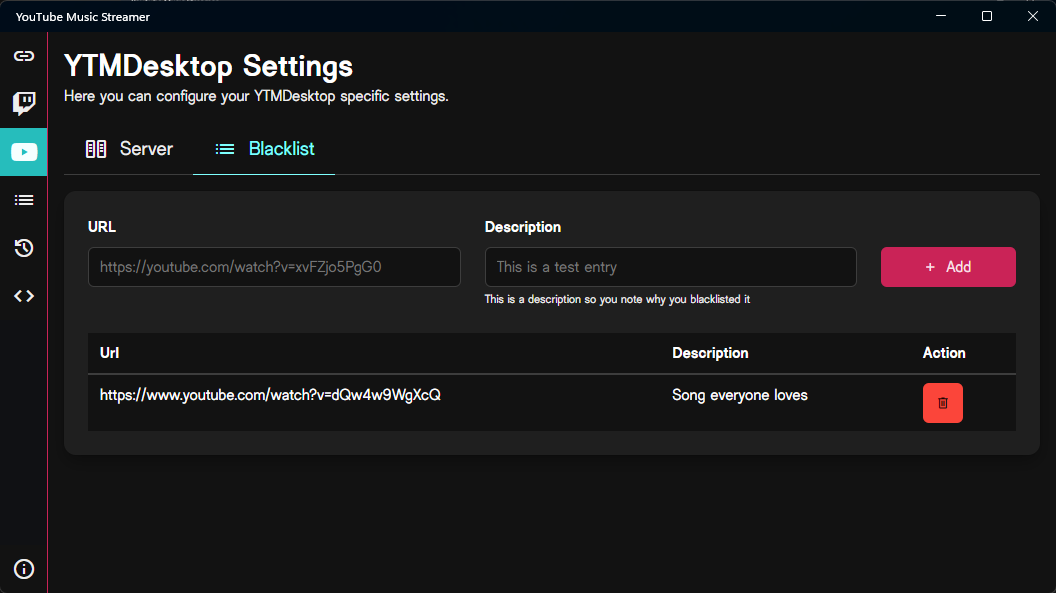
The blacklist prevents specific YouTube or YouTube Music tracks from being added through song requests.
Adding an entry
To blacklist a song:
- Copy its YouTube or YouTube Music URL.
- Paste it into the URL field.
- Optionally enter a description.
- Select Add.
The description is stored for your reference and can explain why the track was blocked.
For example:
Once added, requests matching that URL are rejected instead of being added to the queue.
Removing an entry
Select the delete button next to an entry to remove it from the blacklist.
After removal, viewers can request that track again.
Note
The blacklist applies to song requests. It does not prevent you from playing the track manually in YTMDesktop.